Applications List Guide
The Applications module allows administrators to create, configure, and manage business applications within the OJOO Business OS Platform. Applications act as top-level containers that organize modules, workflows, permissions, and configurations for different business operations.
Overview
The Applications List screen provides a centralized view of all applications created inside the platform. Administrators can use this section to:
- Create new applications
- Edit existing applications
- Manage application order
- Configure icons and slugs
- Control application visibility and organization
Applications List Table
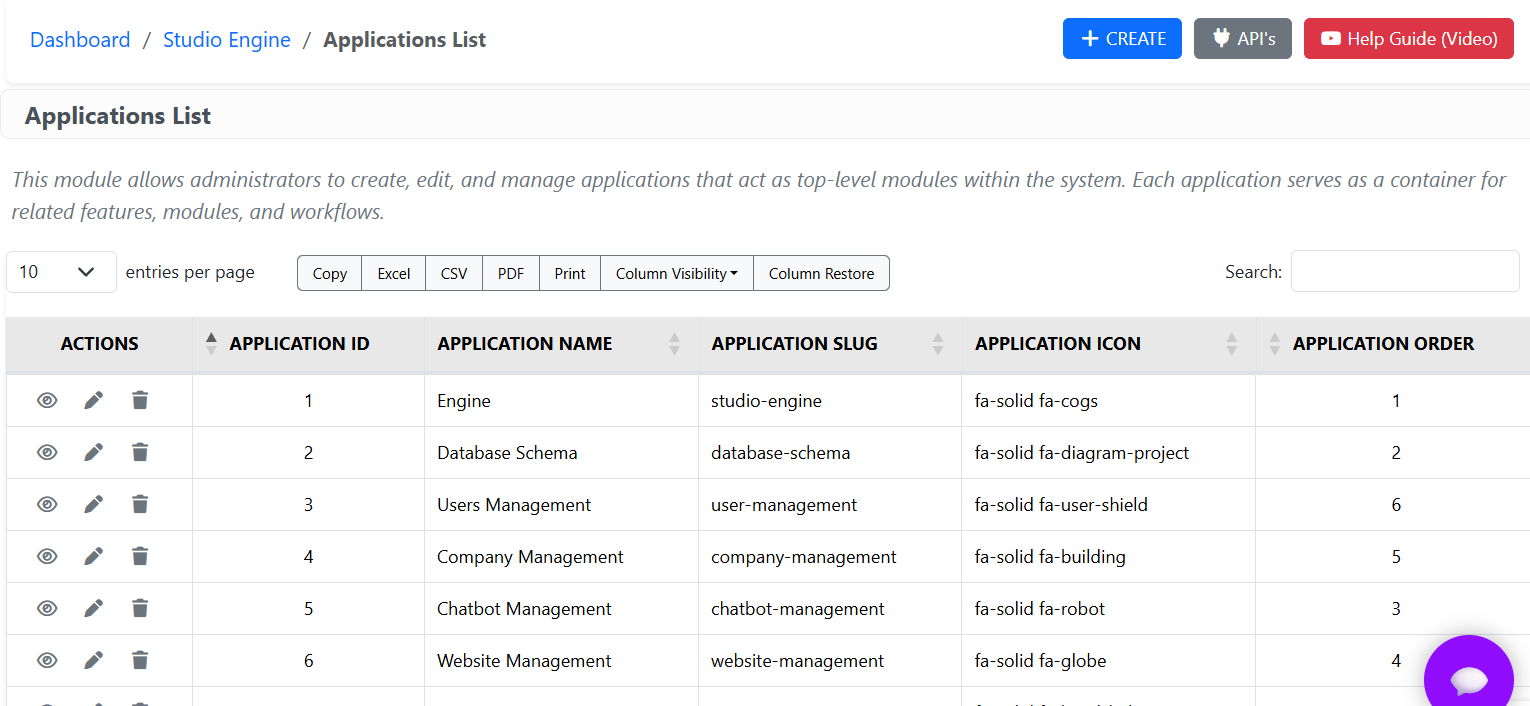
The Applications List table displays all applications configured in the system along with important information related to each application.
| Column | Description |
|---|---|
| Actions | Provides options to View, Edit, or Delete an application. |
| Application ID | Unique identifier assigned to each application. |
| Application Name | Displays the name of the application. |
| Application Slug | URL-friendly identifier used internally for routing and references. |
| Application Icon | Font Awesome icon associated with the application for visual identification. |
| Application Order | Defines the display order of applications throughout the platform. |
Action Buttons
Each application record contains action buttons for quick management operations.
| Action | Description |
|---|---|
| View | Opens the application details page. |
| Edit | Allows administrators to modify application information. |
| Delete | Removes the application from the system permanently. |
Top Toolbar Options
The top section of the Applications screen provides quick-access controls and utilities.
+ Create
Used to create a new application inside the Business OS platform.
APIs
Access application-related API documentation and integration references.
Help Guide (Video)
Opens video tutorials and help documentation for applications management.
Export & Utility Options
Administrators can export and customize application list data using built-in utilities.
- Copy table data
- Export to Excel
- Export to CSV
- Export to PDF
- Print application list
- Customize visible columns
- Restore default column settings
Search & Pagination
The Applications List screen supports advanced search and pagination controls for managing large amounts of application data efficiently.
- Search applications instantly using the search box
- Control the number of entries displayed per page
- Navigate between pages using pagination controls
Best Practices
- Use meaningful application names for better organization.
- Maintain consistent slug naming conventions.
- Assign relevant icons for quick visual recognition.
- Configure application order carefully for improved user navigation.
- Regularly review and clean up unused applications.